📋 Table of Contents
- Why People Download Facebook Videos
- How Facebook Video Downloading Actually Works
- Step-by-Step: Download Facebook Videos in HD/4K
- Quality Guide: SD vs HD vs 1080p vs 2K vs 4K
- Download by Device: iPhone, Android, PC, Mac
- Downloading Reels, Live Videos, Private Videos & More
- Troubleshooting: Silent Videos, Broken Links & More
- Extracting MP3 Audio from Facebook Videos
1. Why People Download Facebook Videos
Facebook has over three billion active users uploading tutorials, live performances, news clips, wedding videos, cooking guides, and sports highlights every day. Yet Facebook's own app offers no native download button for most content. This gap is why Facebook video downloaders exist — and why millions of people search for them every month.
The most common reasons people want to save Facebook videos:
- Offline viewing — watching on a flight, commute, or in areas with poor signal
- Archiving — preserving a family video, live stream, or rare footage before it's deleted
- Content repurposing — educators, journalists, and creators who need reference footage
- Sharing across platforms — sending a video via WhatsApp, email, or uploading to another site
- Editing — clipping highlights from a longer Facebook Live broadcast
Whatever the reason, the right tool can download any public Facebook video in its original quality — no login, no app, no fee.
2. How Facebook Video Downloading Actually Works
Understanding this saves you from the most common frustration: downloading a video only to find it has no sound.
Facebook serves videos in two different ways depending on quality:
| Resolution | How Facebook Serves It | What You Need to Do |
|---|---|---|
| SD (360p / 480p) | Single file — video + audio combined | Direct download. No extra steps. |
| HD (720p) | Single file — video + audio combined | Direct download. No extra steps. |
| Full HD (1080p) | DASH — separate video & audio streams | Use Render to merge streams first. |
| 2K / 4K | DASH — separate video & audio streams | Use Render to merge streams first. |
DASH (Dynamic Adaptive Streaming over HTTP) is the technology Facebook uses for high-quality video. It splits the video track and audio track into two separate files for efficient streaming. If you download only the video stream, you get a silent MP4. The "Render" feature on GetFVid merges both streams server-side into one complete file before your download starts.
3. Step-by-Step: Download Facebook Videos in HD / 4K
Step 1 — Copy the Facebook Video Link
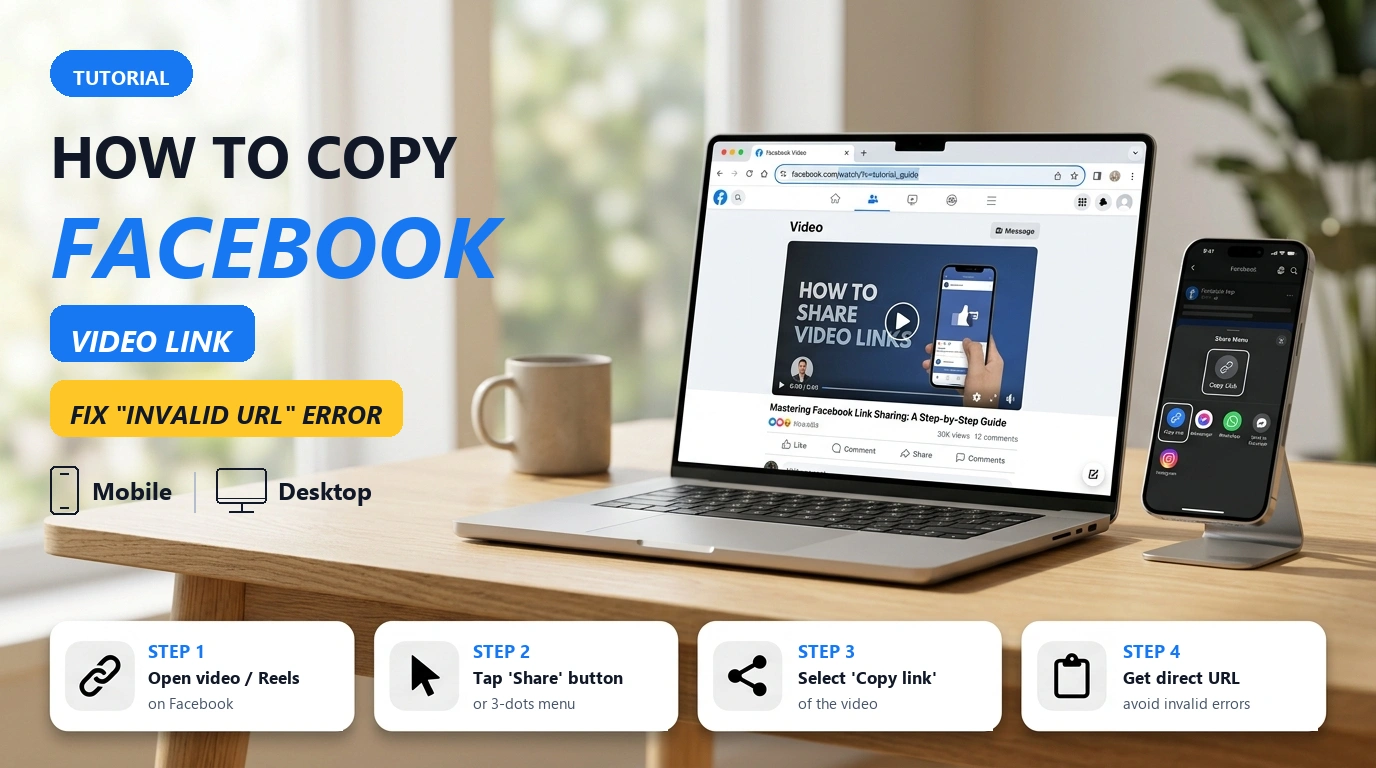
Open the Facebook video. Click the three-dot menu (•••) in the top-right of the post → select "Copy link". The URL is now in your clipboard.
Open the video in the Facebook app. Tap the Share button (curved arrow icon) → tap "Copy Link". On some Android builds, tap the three-dot menu → "Copy link to post".
https://www.facebook.com/ or https://fb.watch/. URLs from Facebook's internal share sheet sometimes include tracking parameters — these still work fine.
Step 2 — Paste the Link into GetFVid
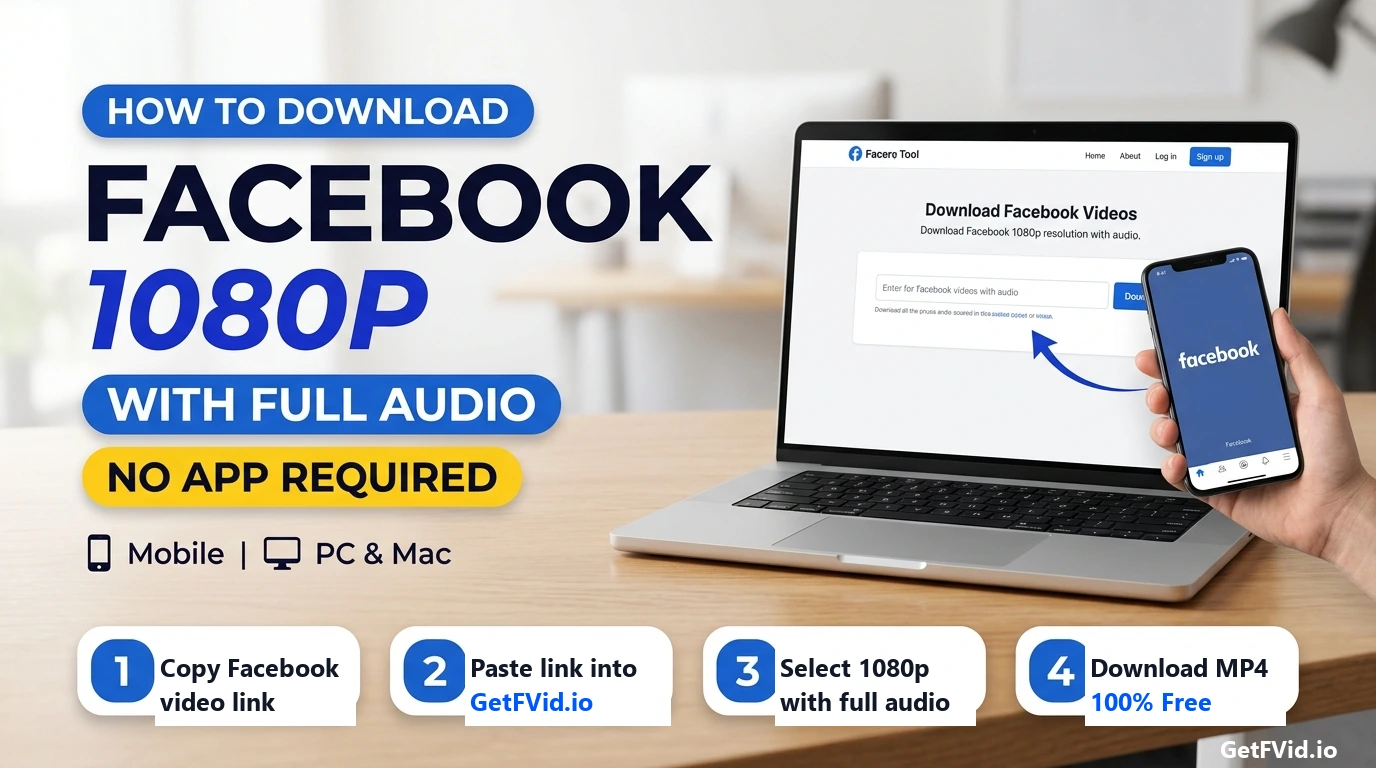
Go to GetFVid.com. Paste the copied URL into the input box at the top of the page and click Download. The tool fetches all available quality options from Facebook's servers within seconds.
Step 3 — Choose Your Quality and Download
A list of resolution options will appear. Here's how to choose:
- For 720p and below: click Download next to your chosen resolution. The file downloads immediately.
- For 1080p, 2K, or 4K: click the Render button. Wait 30 seconds to 2 minutes while the video and audio streams are merged. Once complete, a Download button replaces Render — click it to save your file.
4. Quality Guide: Which Resolution Should You Choose?
Not every video on Facebook is available in every resolution — the options you see depend on the resolution the original uploader chose. Here's what each quality level means in practice:
| Quality | Pixels | Best For | Typical File Size (5 min video) |
|---|---|---|---|
| SD 360p | 640×360 | Voice memos, quick clips on limited storage | ~30–50 MB |
| SD 480p | 854×480 | Standard mobile playback | ~60–90 MB |
| HD 720p | 1280×720 | Everyday use, most devices | ~120–200 MB |
| Full HD 1080p | 1920×1080 | TV playback, editing, presentations | ~300–500 MB |
| 2K | 2560×1440 | High-end monitors, professional archiving | ~600 MB–1 GB |
| 4K UHD | 3840×2160 | Maximum quality, large-screen displays | ~1.5–4 GB |
5. How to Download Facebook Videos by Device
📱 iPhone & iPad
Open Safari (not the in-app browser). Paste the link into GetFVid and tap Download. When the video opens, tap and hold → "Download Linked File" — it saves to your Files app. To move to Photos: open Files → tap the video → Share → "Save to Photos".
Note: iOS 15+ supports direct MP4 downloads in Safari without any app needed.
🤖 Android
Open Chrome (or any browser). Use GetFVid, tap Download — the file goes directly to your Downloads folder and appears in your Gallery or Files app automatically. Tap the download notification for instant access.
Works on Samsung, Xiaomi, OPPO, Vivo, Realme, OnePlus, and all other Android brands.
🖥️ Windows PC
Open any browser. Paste the link, click Download — the MP4 saves to your default Downloads folder. Right-click the download button and select "Save link as" to choose a specific save location.
🍎 Mac
Works identically to Windows in Safari, Chrome, or Firefox. The file downloads to your Downloads folder. QuickTime Player and IINA both play the downloaded MP4 natively with no additional codecs needed.
6. Downloading Different Types of Facebook Content
Facebook Reels
Reels are Facebook's short-form vertical video format, similar to TikTok and Instagram Reels. To get the link: open the Reel → tap the Share icon → tap "Copy Link." Paste it into GetFVid. Reels download as clean MP4 files with no watermark — the file is identical to the original upload.
Facebook Live Replays
After a Facebook Live broadcast ends, the replay is saved as a standard video on the broadcaster's profile or page. Find the replay, copy its link, and paste it into GetFVid. Live replays are often available in HD if the broadcast was streamed at 720p or higher. Very long live streams (2+ hours) may take a few extra minutes to render.
Facebook Group Videos
Videos posted in public Facebook Groups can be downloaded the same way as any other video — copy the post link and use GetFVid. Videos in private groups require you to be a member and have access; if you can view it on Facebook, the link will work.
Private ("Friends Only") Videos
If you have permission to view a video — because you're friends with the poster, a group member, or the video is shared with you — you can copy the link and download it. GetFVid cannot bypass Facebook's privacy settings. If you cannot open the video in your Facebook account, the link will return an error.
Facebook Watch Videos
Videos on Facebook Watch (the dedicated video tab) work identically. Copy the URL from your browser's address bar while the video is playing, paste it into GetFVid, and download in your preferred quality.
7. Troubleshooting: The Most Common Problems (and Fixes)
❌ Problem: Downloaded video has no sound
Cause: You downloaded a 1080p, 2K, or 4K DASH video stream directly, without merging the audio track.
Fix: Go back to GetFVid, paste the same link again, and this time click the Render button next to the high-quality option. Wait for rendering to complete, then download the resulting file. It will have full audio.
❌ Problem: "Invalid URL" or "Video not found" error
Possible causes and fixes:
- The video was deleted or made private after you copied the link — nothing can be done in this case.
- You copied an incomplete URL — go back to Facebook, copy the link again from the share menu (not your browser address bar if the page has not fully loaded).
- The URL contains
?__cft__or similar tracking parameters — this is normal and does not cause errors. If it does, remove everything after the?and try again.
❌ Problem: Render button does nothing / rendering stuck
Fix: Refresh the page and try again. If the issue persists, try a different browser. Heavy server load during peak hours can occasionally slow rendering — try again after a few minutes.
❌ Problem: Video downloads but won't play on my device
Cause: Rarely, some very old Facebook videos use the VP9 or H.265 codec which older Apple devices don't support natively.
Fix: Use the Render option — GetFVid re-encodes the file using the universal H.264 codec, which plays on 100% of devices including every iPhone model.
❌ Problem: Only SD options are showing, no HD
Cause: The original video was uploaded in SD quality. There is no way to upscale a video that was never in HD — the options you see reflect exactly what Facebook has stored on its servers.
8. Extracting Audio: Download Facebook Videos as MP3
GetFVid can extract the audio track from any Facebook video and save it as an MP3 file. This is useful for:
- Saving music performances, DJ sets, or live concerts
- Archiving speeches, interviews, or podcasts posted on Facebook
- Extracting voiceovers, sermons, or educational audio for offline listening
How to download Facebook audio as MP3:
- Paste the Facebook video link into GetFVid and click Download.
- In the results, select the MP3 tab or option (separate from the MP4 video options).
- Choose your preferred bitrate — 128 kbps for smaller file size, 320 kbps for maximum audio quality.
- Click Download. The MP3 file saves to your device like any normal audio file.
On iPhone: After tapping Download in Safari, tap and hold the video, then select "Download Linked File" to save it to the Files app. To move it to Photos, open Files, tap the video, tap Share, and choose "Save to Photos."